
Updating your SE-5 1000 HARDWARE
Firmware update – SE-51000
Updating your SE-5 1000
Updating your SE-5 1000 firmware. (Firmware is the software inside of your SE-5 1000 that makes everything work) From time to time we will add new features to your SE-5 1000 and this is how you can stay current with the rest of the world (and have cool new features.) To find out which version of firmware you have in your SE-5 1000, turn it on in Stand Alone Mode (without being connected to the computer) and look at the bottom of the screen during the Cell Clearing and it will say SE-5 01×62 (or whatever your number is).
We are currently at version number 72. So if you have a number lower than that, you can click on the link below and then follow all of these instructions.
(P.S. don’t worry if you don’t get it exactly right the first time. You can’t hurt anything.)
Click this link to download the latest firmware version. DOWNLOAD FIRMWARE
- Für die deutsche Version finden Sie hier.
- Für die deutsche Anleitung finden Sie hier ...
You will see this window: (of course all the references will be to version 72, V10172ENSE5.SE5 or the latest version)
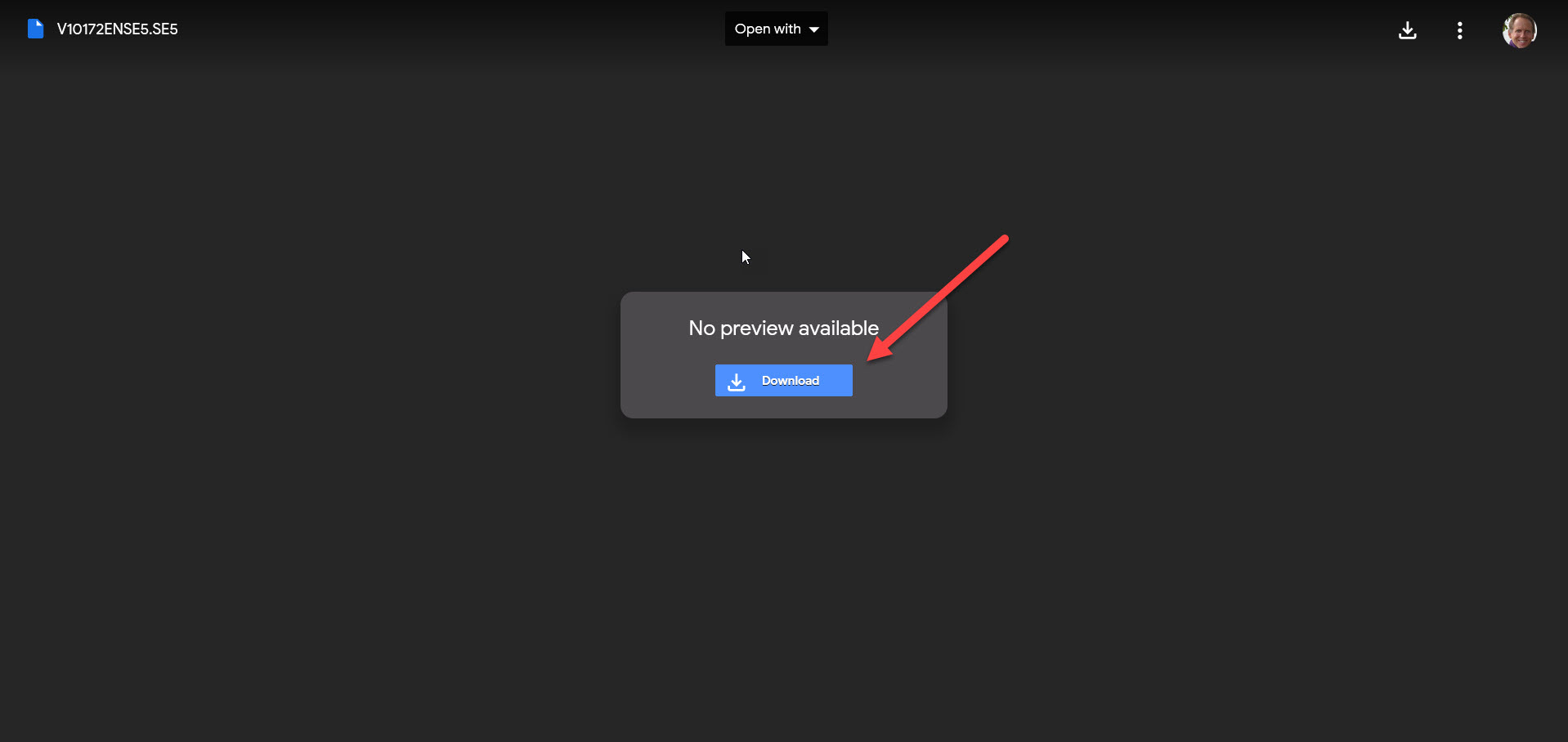
Click Download
The file will be downloaded into the DOWNLOAD folder on your computer.
Next, open your SE-5 1000EN (or SE-5 2000EN) and start the USB Utility 1-0-1a.exe
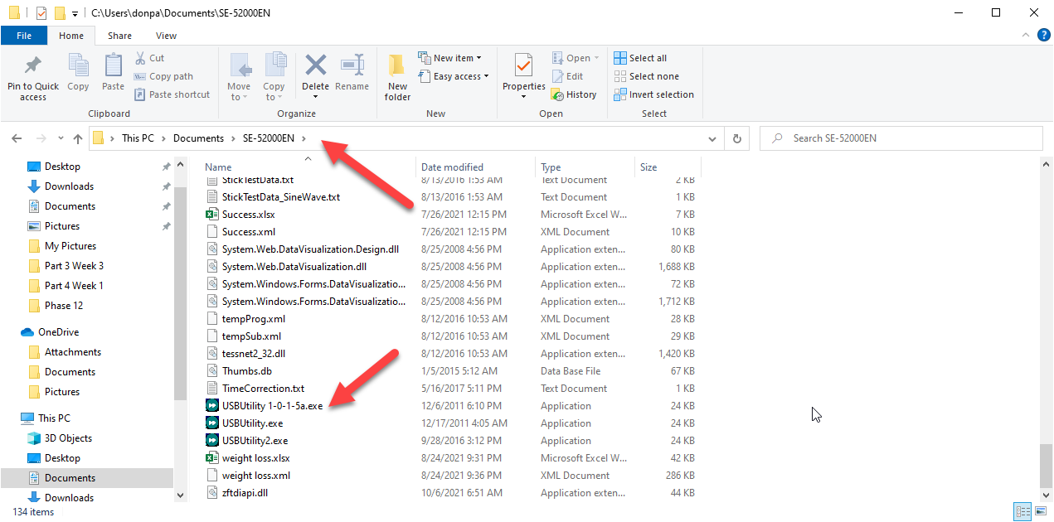
Double click on the USB Utility and you will see this window.
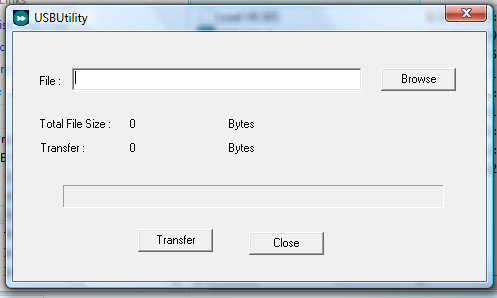
Click on the Browse button and navigate to the folder where you placed the update file in the first step. (In Vista it will be in your Downloads folder).
In the file type drop down window, make sure you choose the file type .SE5
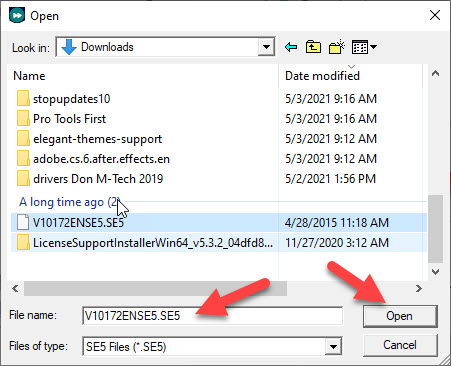
Then click on the OPEN button.
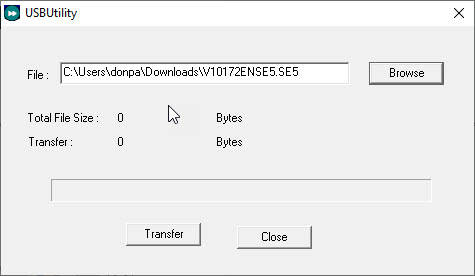
OK, now for the tricky part (not very tricky, but you have to follow this procedure or it won’t work, but like I said, don’t worry if you don’t get it right, just do it again until you get it.)
Turn your SE-5 1000 off (if it isn’t already).
Plug your USB cable into the USB port on the computer and into the SE-5 1000.
Turn on your SE-5 1000 and after the Cell clearing it will say Preparing for USB. During the time when it says this, press BOTH the UP arrow and the DOWN arrow keys at the same time. Then on your SE-5 1000 it will say LOAD FIRMWARE, Enter to Proceed.
OK now you are ready…
Press ENTER on your SE-5 1000, it will say on the SE-5 “Start USB utility” and then click Transfer on your USB Utility. This will take several seconds. A progress bar will begin on your PC Download Utility. (Don’t worry if it seems to get stuck for awhile, this is normal).
After a successful update the software on your PC will say Download complete.
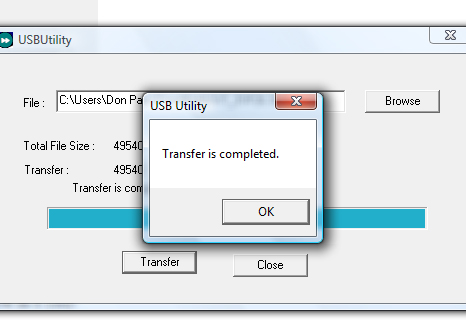
Your SE-5 1000 will reboot and go through the Cell Clearing and during that time you should see the new version number at the bottom.
You did it!!!
Replacing the Internal Fixed Programs in the SE-5 1000
If you would like to replace the internal programs inside of the SE-5 1000 (from time to time there might be corrections or updates) then go through these steps.
1. Connect your SE-5 1000 via the USB cable to your computer.
2. Start the USB utility (same utility above).
3. Click on the Browse button and this time in the drop down window choose ALL FILES. (instead of SE5 or SE5D).
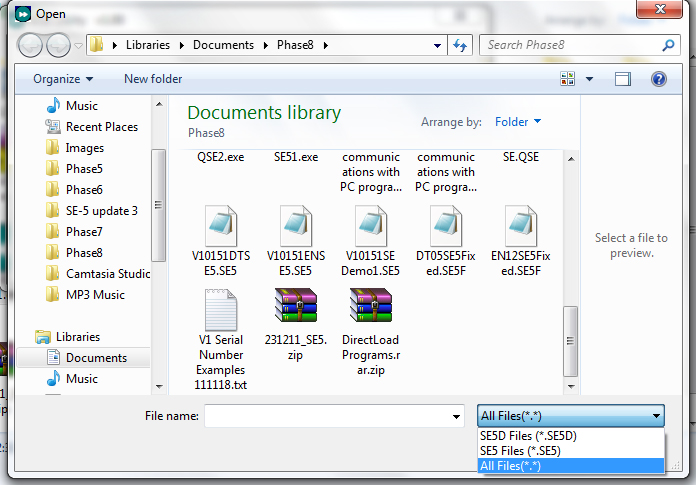
Now choose the fixed programs file (currently version EN12) EN12SE5Fixed.SE5F and then click OPEN.
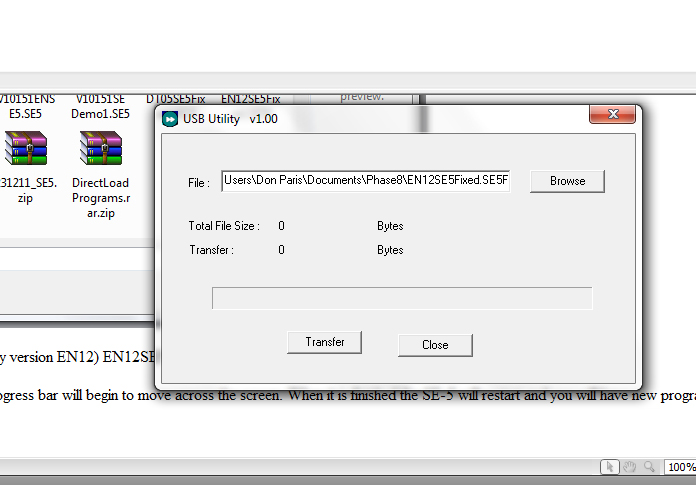
Click Transfer on the USB Utility and the progress bar will begin to move across the screen.
When it is finished the SE-5 will restart and you will have new programs installed in Stand Alone Mode.